Overview
- This article will guide you on integrating your Maropost (formerly Neto) platform with DHL Express Commerce.
- Once completed, your order will be imported into DHL Express Commerce and the tracking information will be written back when you print a label.
1. Create an API user in Maropost
- Log into your Maropost Control Panel
- If your site is not live, go to your Maropost provided URL - yourdomain.neto.com.au/_cpanel
- If your site is live, go to your domain URL - www.yourdomain.com.au/_cpanel
- Replace "www.yourdomain.com" with your domain name or Maropost sub-domain. (If you are using a subdomain (eg. store.yourdomain.com) remove the "www")
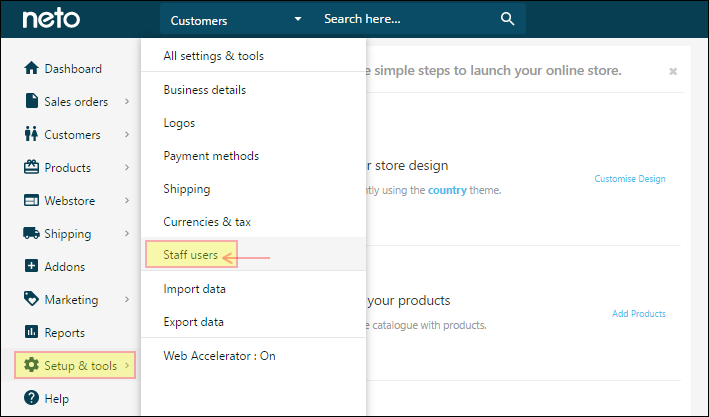
- Mouse over Setup & tools and click on Staff users.
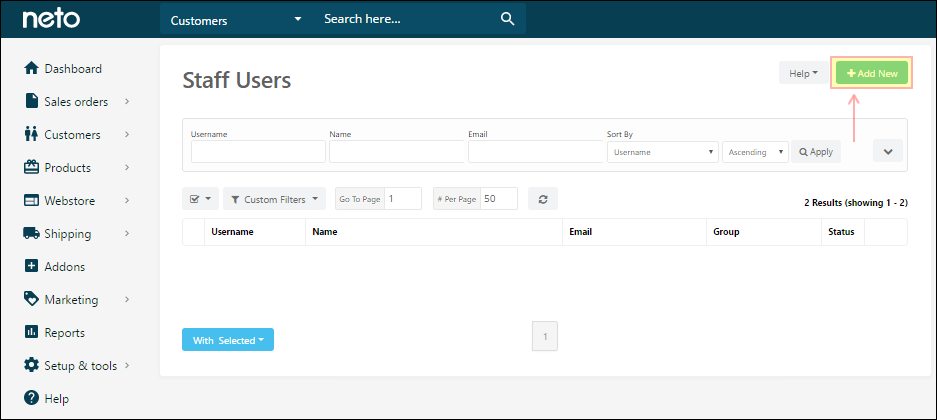
- Click Add New.
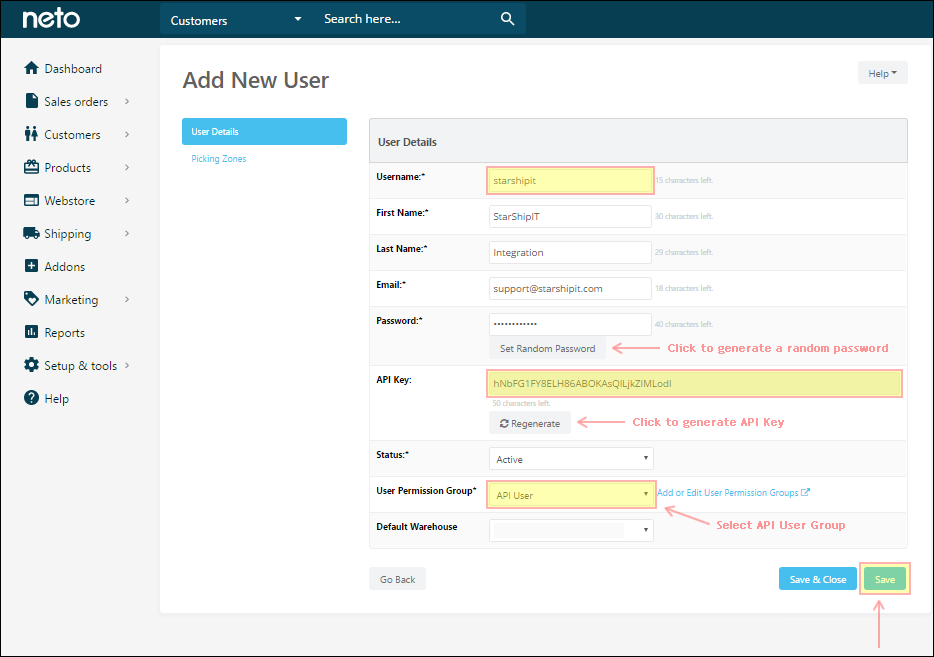
- Fill out all the fields as shown below, save the new API user, and note down the Username and API Key for the next step
2. Enter your API details in DHL Express Commerce
- In DHL Express Commerce, go to Settings > Integrations > Add new integration > Neto.
- Enter your Maropost Site URL, Username and API Key from the previous step.
- Click on Save.
printing, returns, checkout rates